

Creating A Project
Before you continue!
If you have not learned yet about creating a Project click here to learn before continuing.
Creating a Multi Track Edit
Once you have created a project you will see in your project dashboard two buttons to create a Single Track Edit or a Multi Track Edit. When you click to create a Multi Track Edit you will see the following: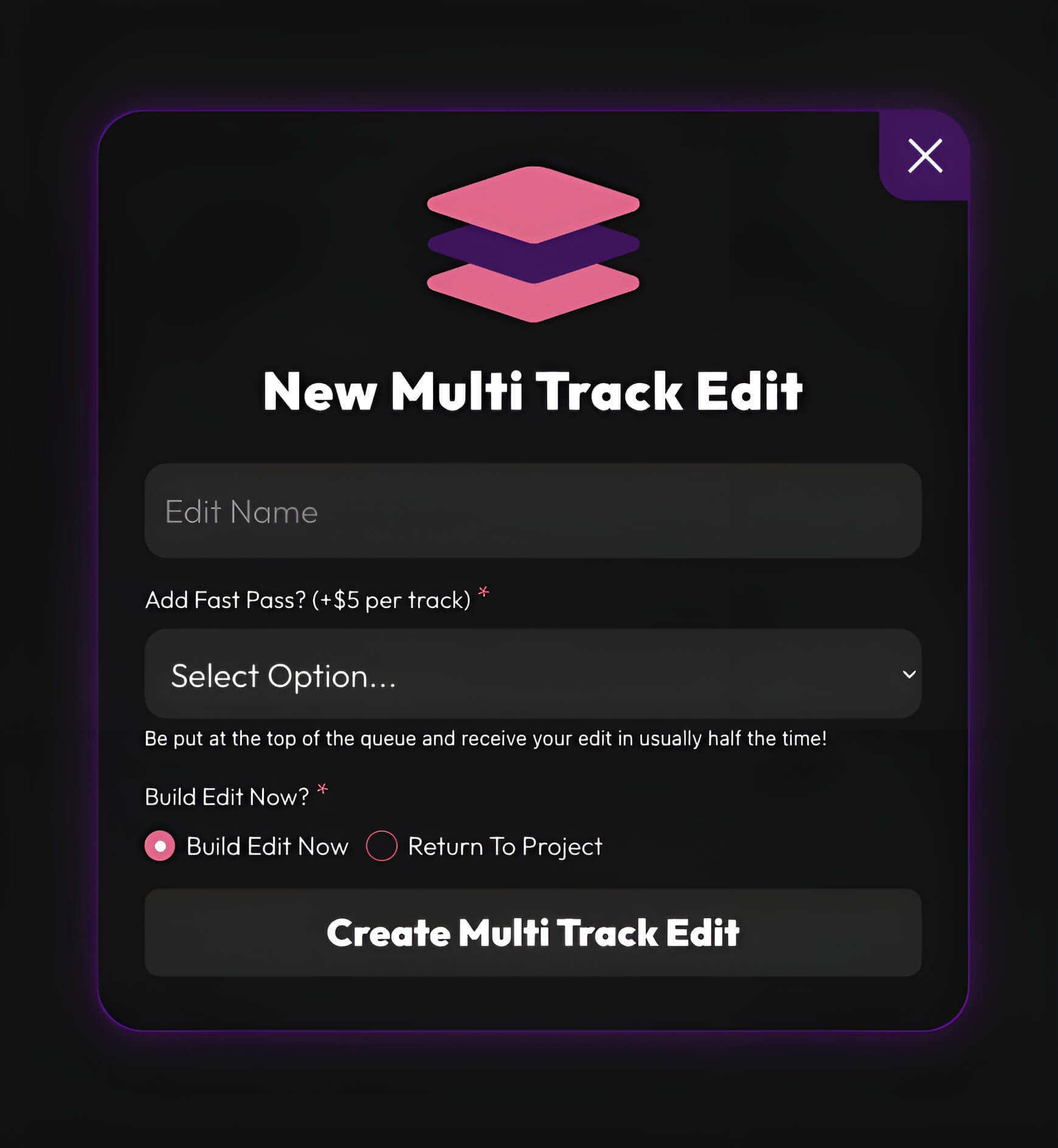 Here you can set the Edit Nickname and if you want to activate Fast Pass.
Want to learn about Fast Pass?
Click here to learn about what Fast Pass is and how it works!
Build Edit Now
By default this option is selected so you can start building the Multi Track Edit right away.Return To Project
This option is here in case you wanted to quickly add a bunch of edits first and come back to them later to add all the cuts and details.Tips & Tricks To Consider
- Multi Track Edits are created in a Pending status. After you upload the music and define the tracks and cuts for the edit, the status updates to Pending (Ready).
- Multi Track Edits will not go into the queue to be started until the Project that the edit is in has been paid.
- If you have specific cuts but want the editor to take a creative approach to make them sound seamless and clean, be sure to note this in the instructions. We’ll do our best to follow your guidance and ensure your edit sounds its best.